


GPT Image 2 Prompt Guide: How to Write Prompts That Actually Work
A great GPT Image 2 prompt isn't just a sentence — it's a structured brief. Whether you're generating product visuals, editorial illustrations, or UI mockups, knowing how to write effective prompts makes all the difference.
The 8-Element GPT Image 2 Prompt Framework
Based on community testing and the Awesome GPT Image 2 Prompts open-source library, the most effective prompts follow a consistent structure.
1. Photography / Style Foundation
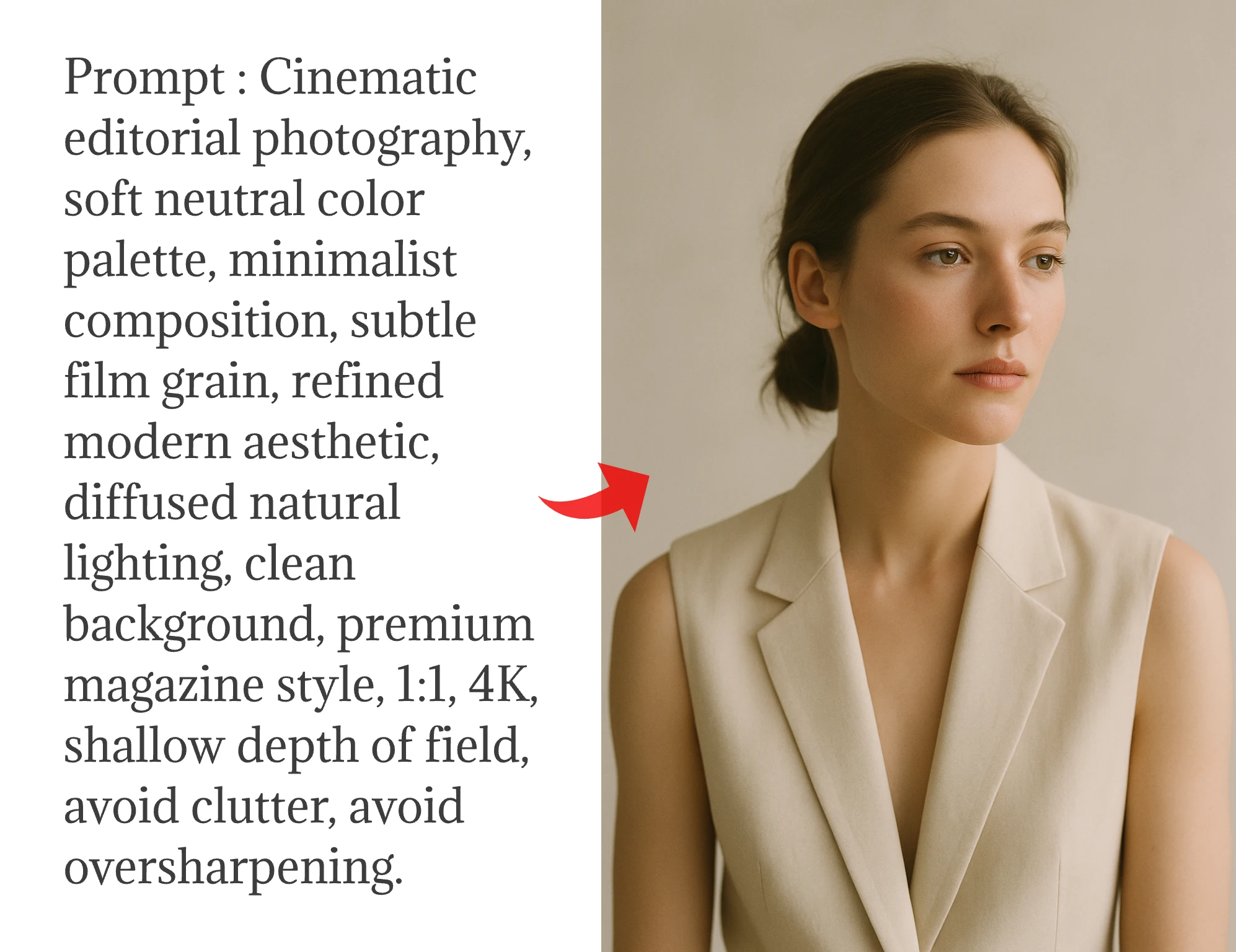
Start with the visual style: "35mm film photography", "cinematic editorial", "hand-drawn watercolor", "flat color illustration". This sets the entire aesthetic direction before any details are added.
2. Lighting Description
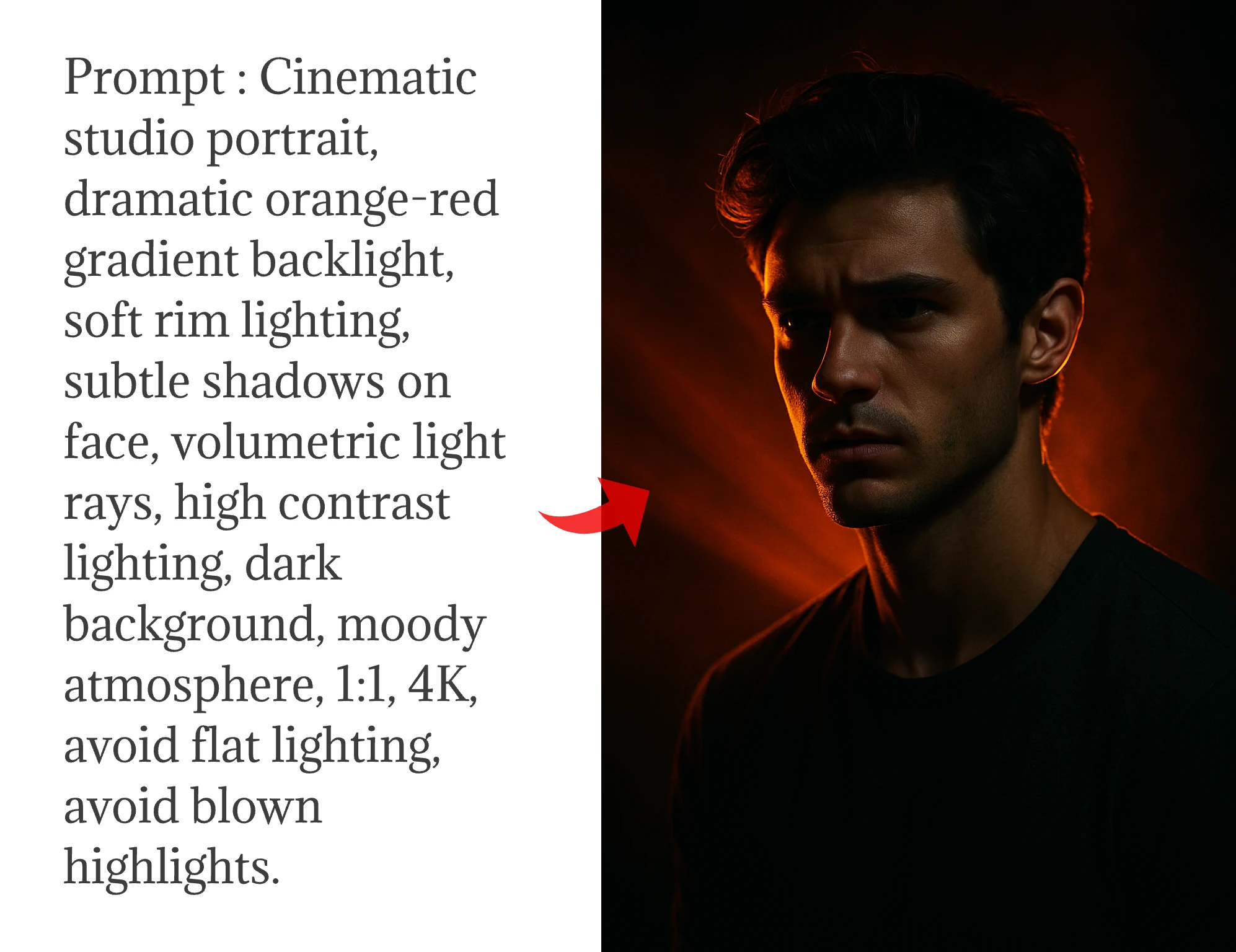
Be specific: "fluorescent light mixed with neon glow", "dramatic orange-red gradient backlight", "golden hour natural light". Lighting is what separates flat images from cinematic ones.
3. Subject & Character Details
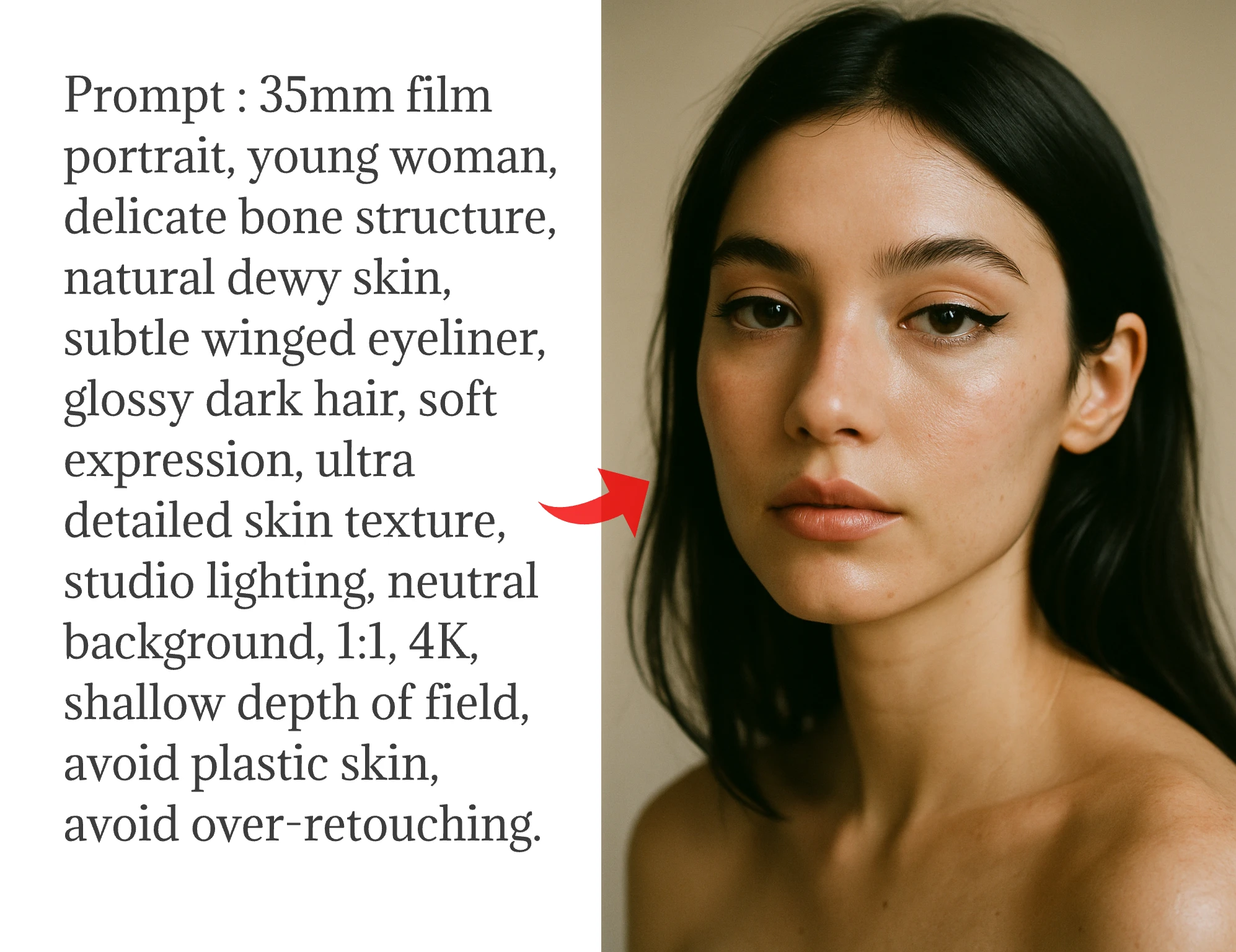
For portraits, describe facial features, skin texture, makeup, hair specifically: "Delicate bone structure, natural dewy skin, subtle winged eyeliner, glossy dark hair." The more precise, the better.
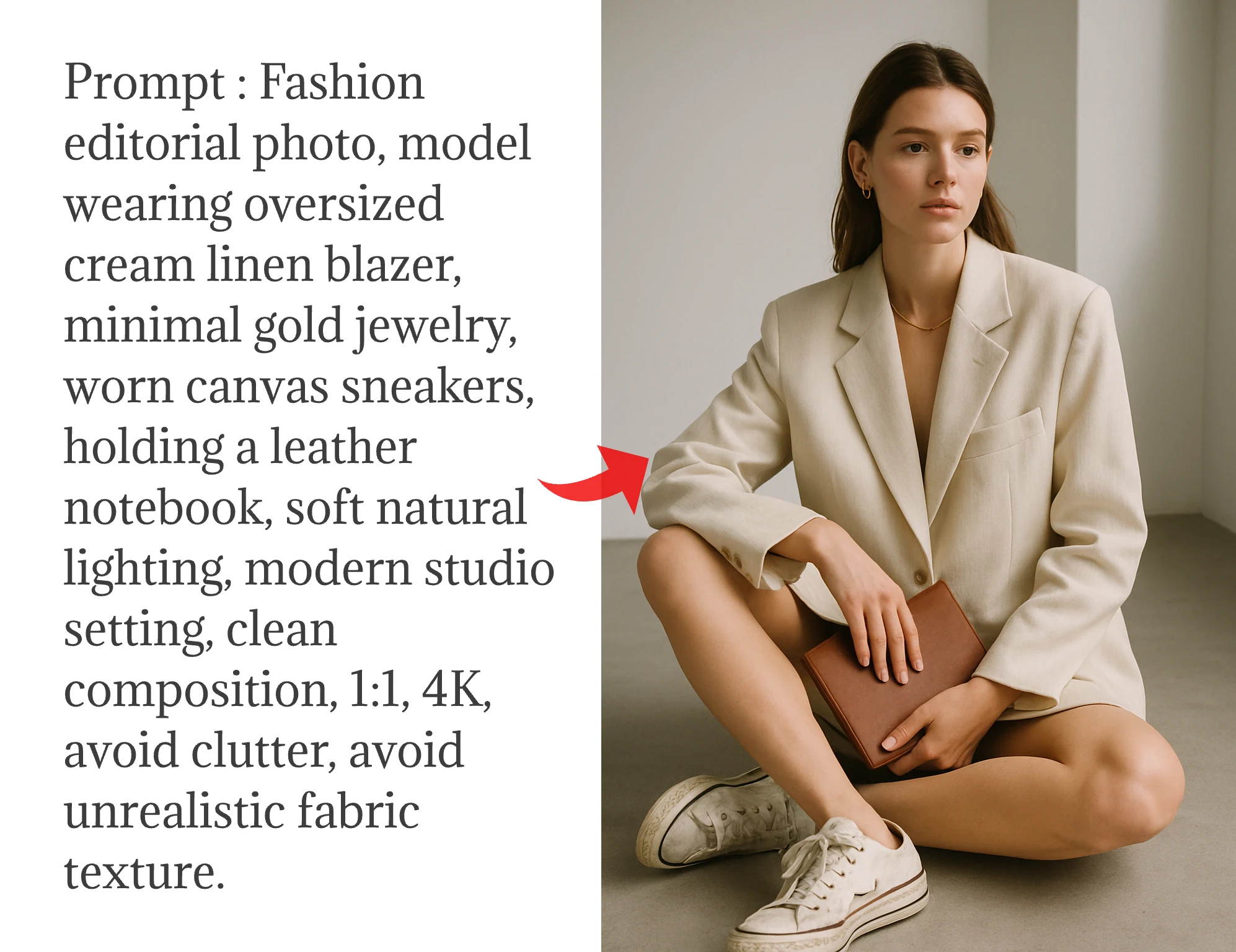
4. Wardrobe & Props
Describe material, color, and details: "oversized cream linen blazer, minimal gold jewelry, worn canvas sneakers." Don't leave clothing vague.
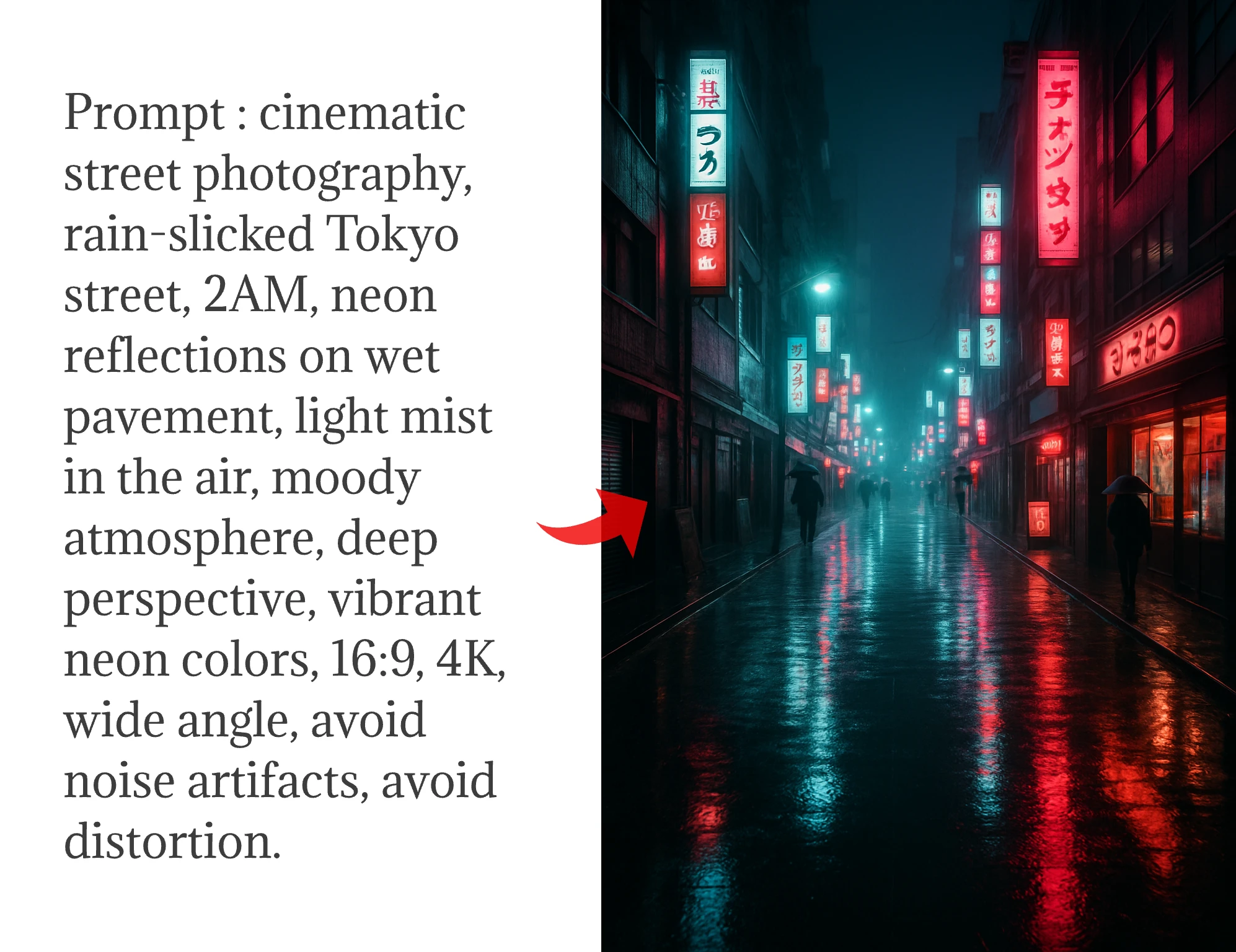
5. Scene & Environment
Location, atmosphere, time of day, weather: "Rain-slicked Tokyo street, 2AM, neon reflections on wet pavement, mist in the air."
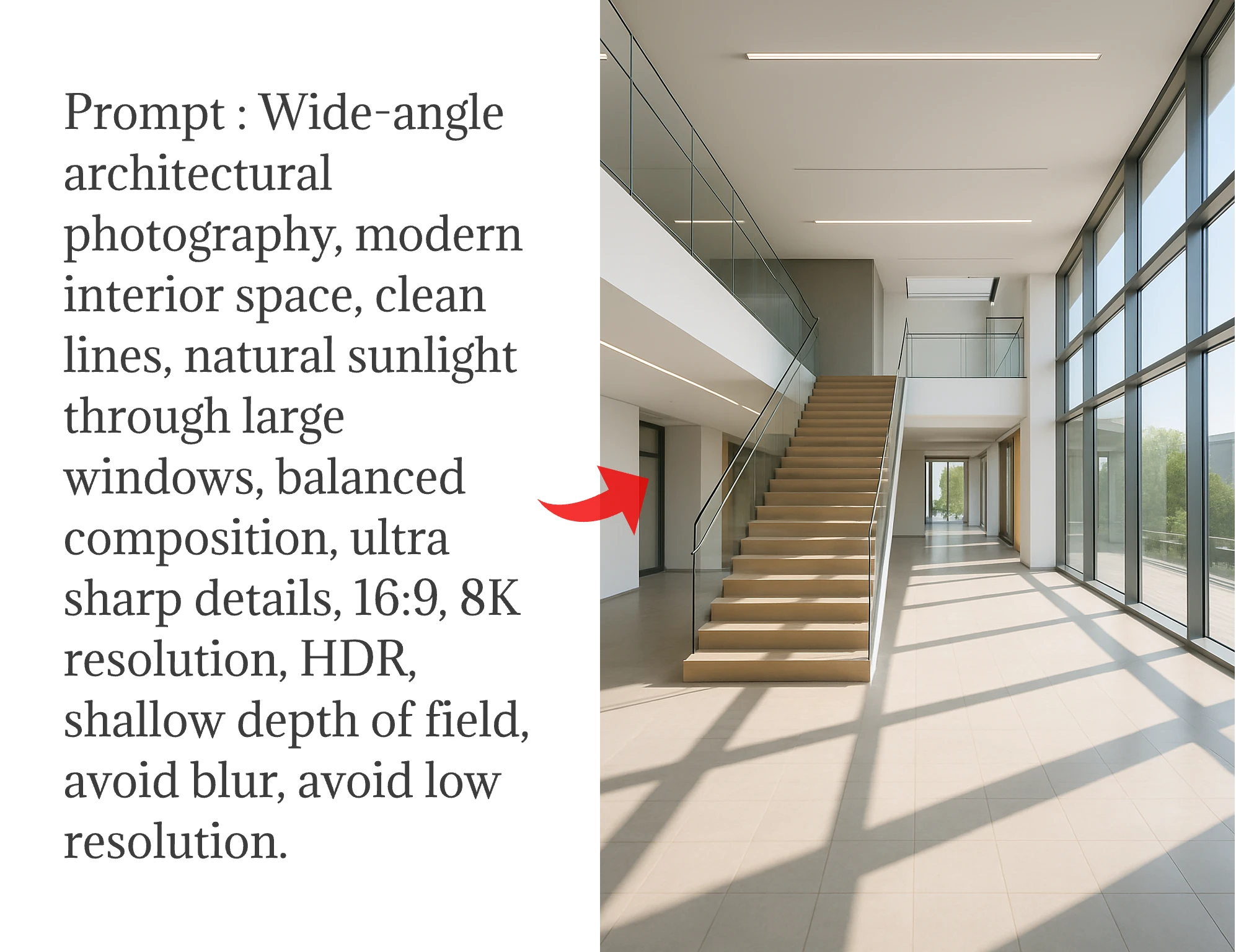
6. Technical Parameters
Always include aspect ratio (9:16, 16:9, 1:1), resolution (8K, 4K), and style modifiers like "shallow depth of field" or "wide angle".
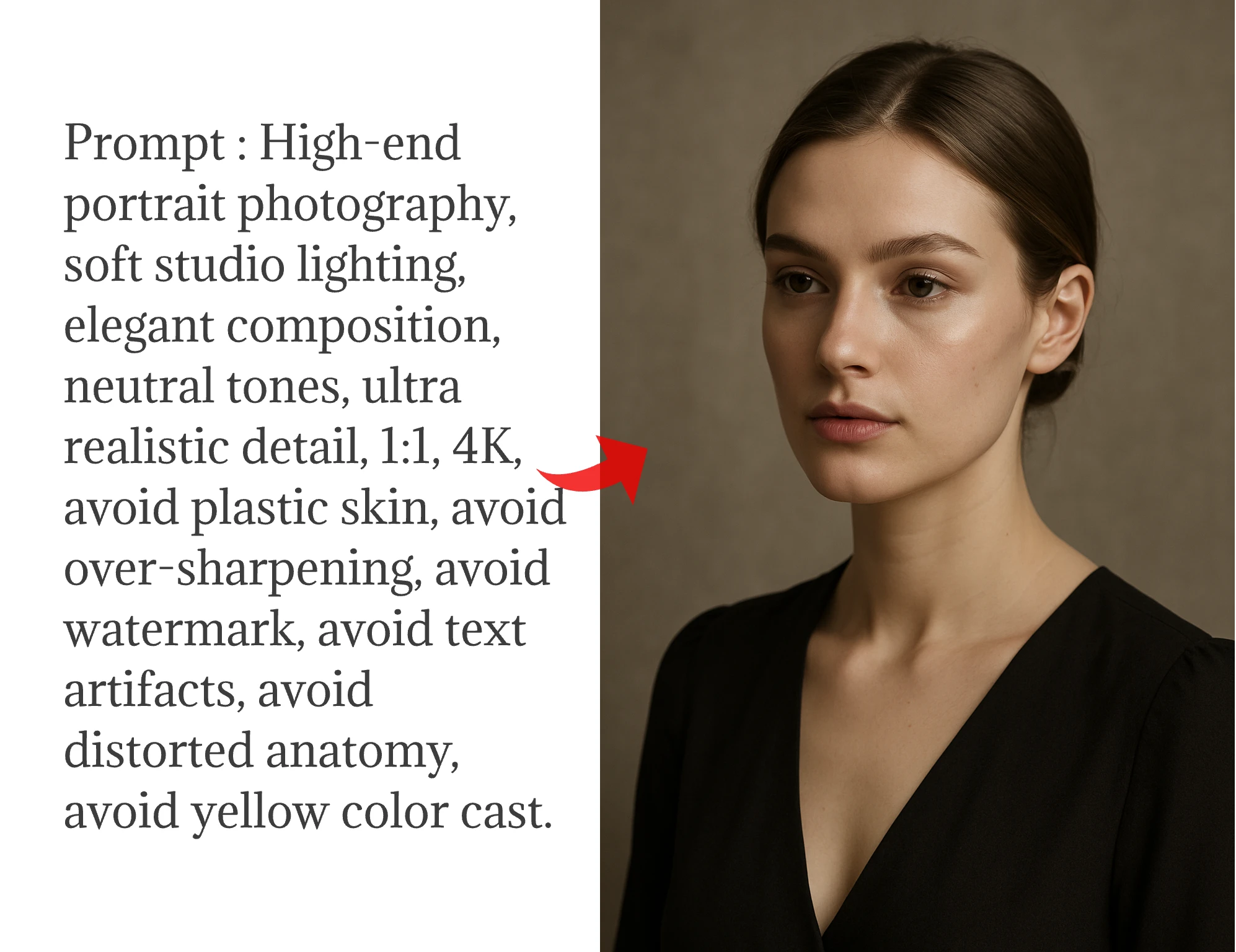
7. Negative Prompts
Explicitly exclude common failure modes: "avoid plastic skin, over-sharpening, watermarks, lens distortion, yellow color cast."
8. Text in Image
For text rendering — one of GPT Image 2's standout features — always put the exact text in quotation marks: 'a neon sign reading "OPEN LATE"'. This signals the model to engage its high-accuracy text rendering engine.
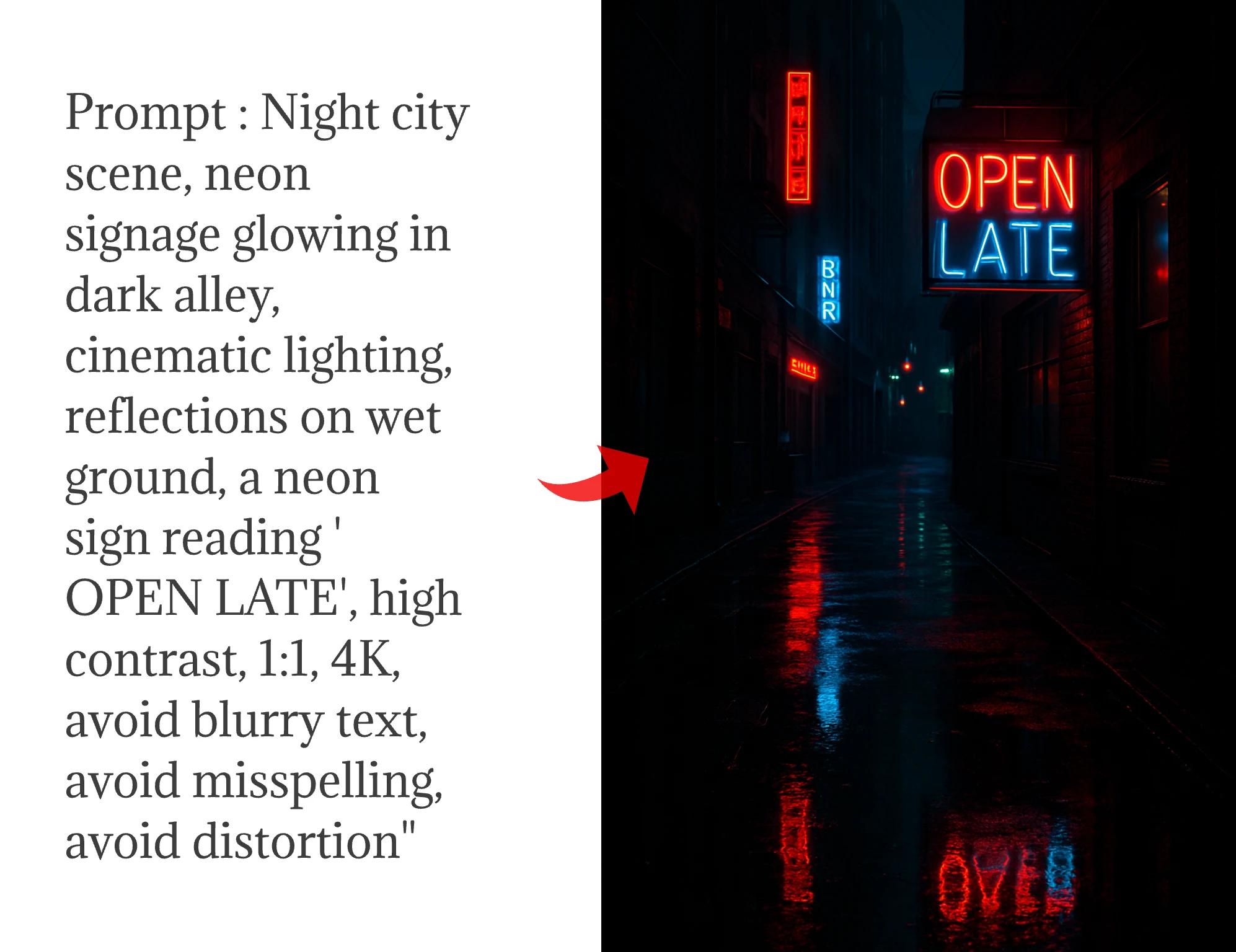
Real GPT Image 2 Prompt Examples by Category
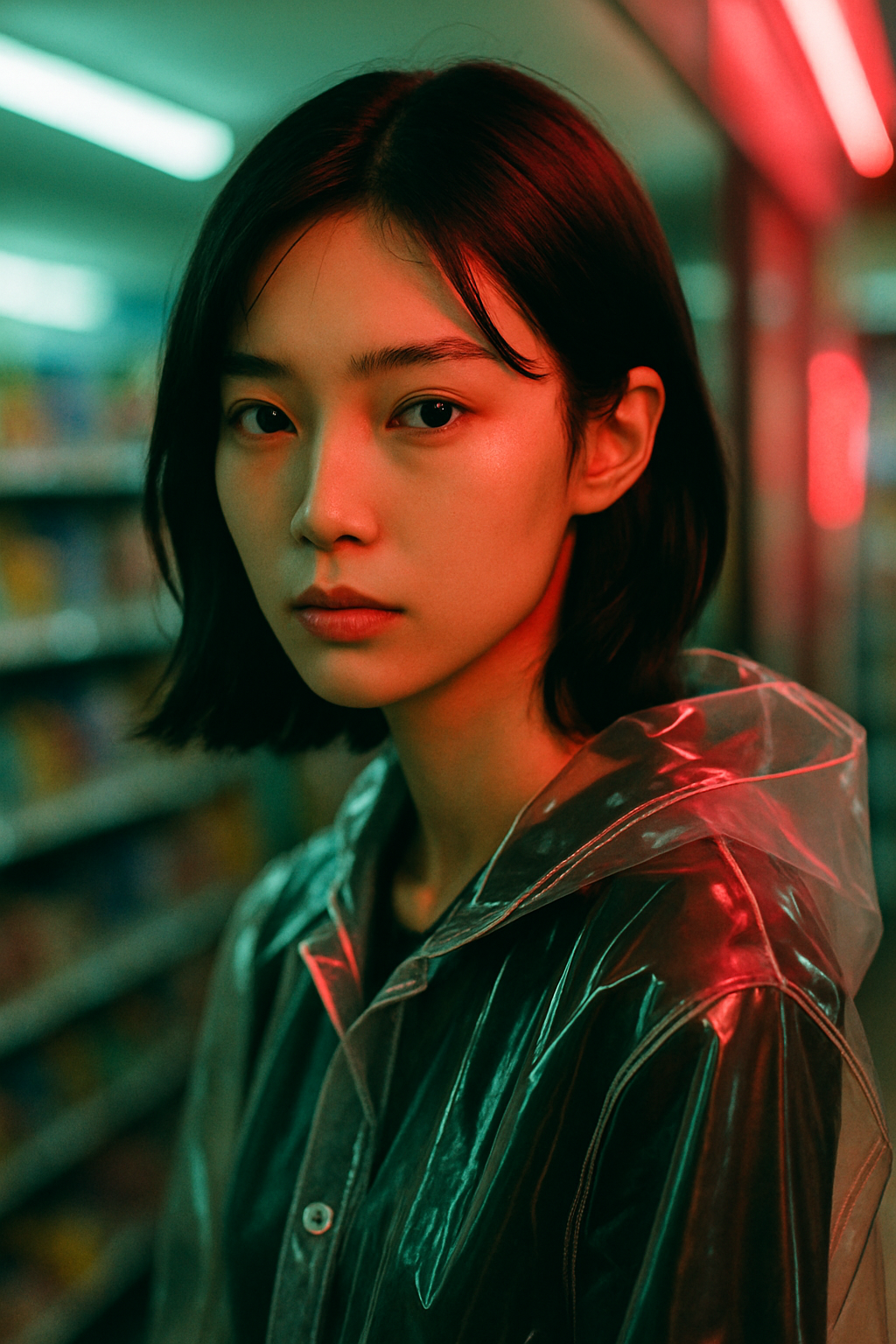
Portrait Photography
"35mm film portrait, young woman in a Tokyo convenience store, fluorescent light mixed with neon glow, high contrast, sharp facial features, delicate bone structure, glossy dark hair, transparent plastic raincoat, 9:16"
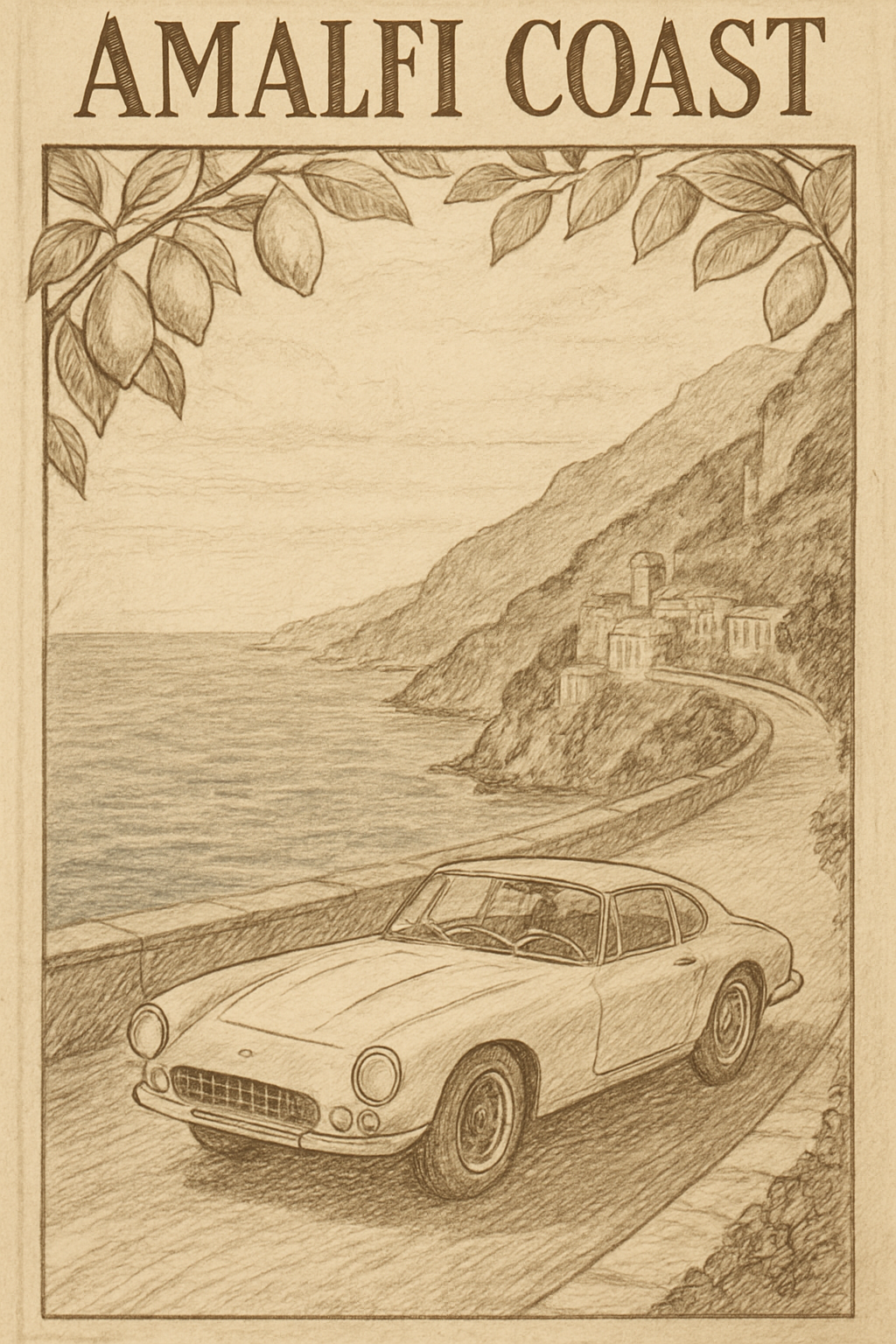
Travel Poster
"Vintage 1960s travel poster illustration, white Italian sports car on Amalfi Coast road, Mediterranean blue sea, lemon tree border, pencil sketch style, warm aged paper texture, serif headline font, 9:16"
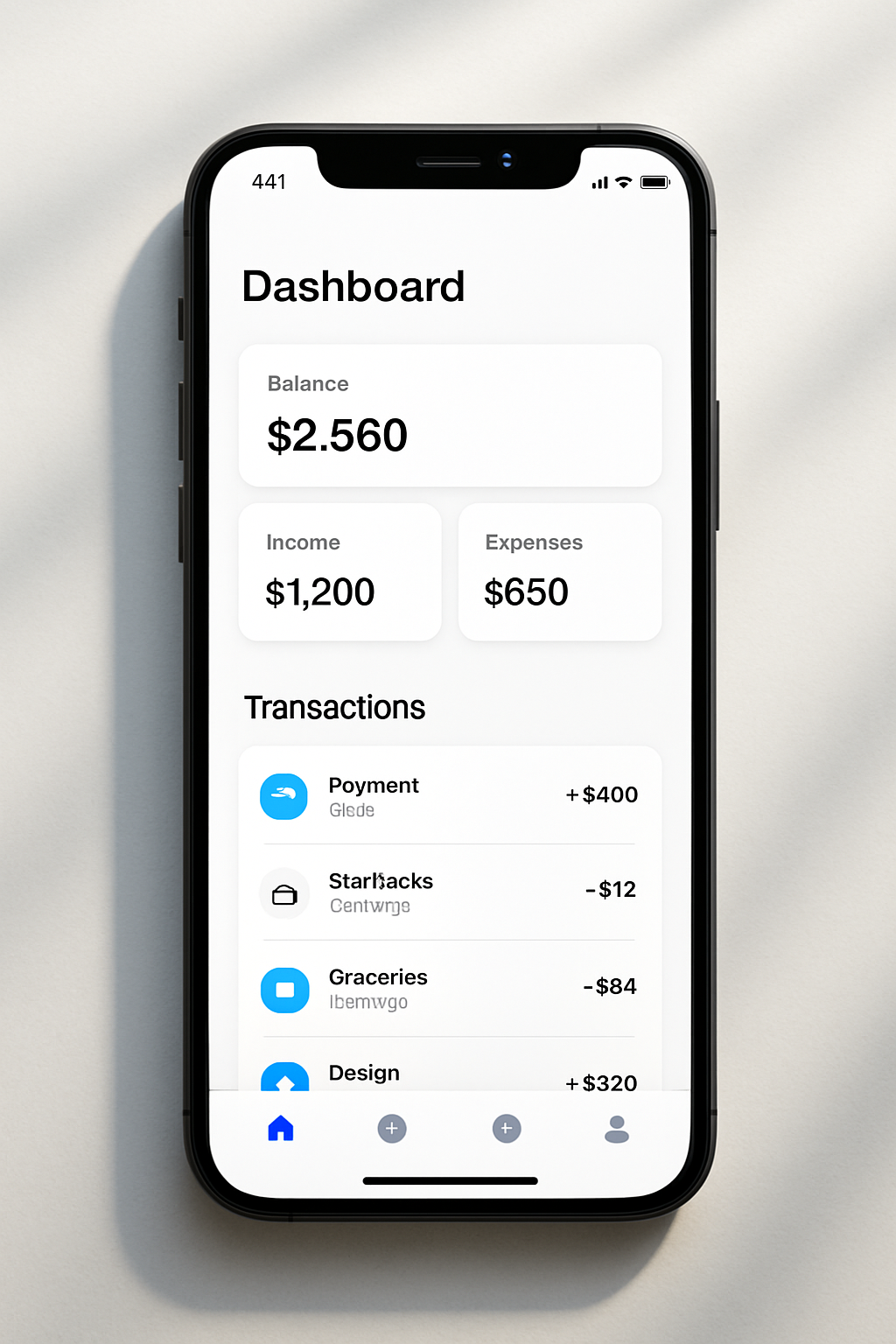
UI Design Mockup
"Clean mobile app UI screenshot, minimalist dashboard design, white background, soft shadow cards, blue accent color, realistic iPhone frame, natural light on desk, 9:16"
Advanced Tips for GPT Image 2 Prompts
Iterate rather than regenerate. Start with your core prompt, then add or modify one element at a time. GPT Image 2 supports conversational refinement — treat it like directing a scene, not submitting a form.
For complex compositions, use a reference image alongside your text prompt. Annotating directly on a reference frame gives the model spatial direction it can follow precisely.
Generate Stunning Images with iMini
Ready to put these GPT Image 2 prompts to work? iMini AI gives you access to today's top image models — Nano Banana Pro, Seedream 4.0, and more — all within a collaborative infinite canvas.
Use iMini's multi-model canvas to test the same prompt across different models and find the result that works best for your project. No switching platforms, no subscription juggling — just better images, faster.